Prefer a printable version? Both guides fit on one page:
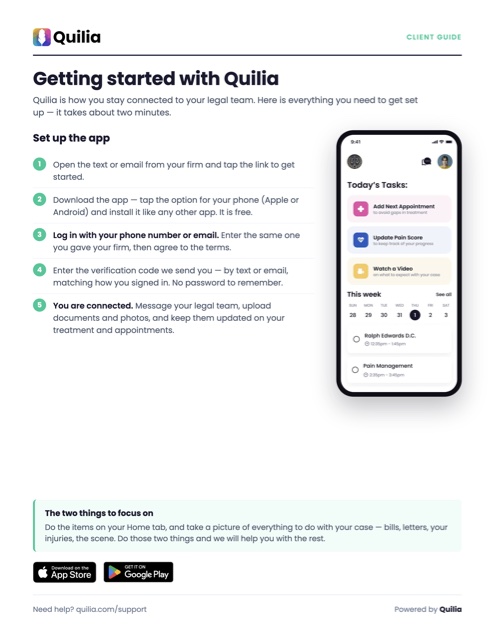 Getting started with QuiliaThese same steps on one page.Download PDF
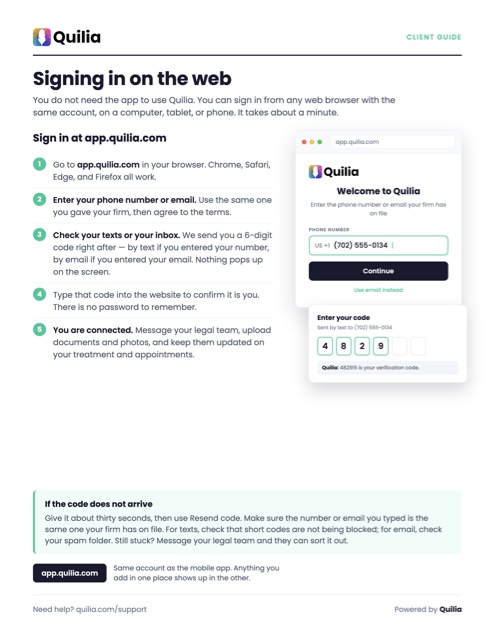 Signing in on the webUsing Quilia from a browser, no app required.Download PDF
Step 1: Receive an Invitation
You’ll receive a text message, an email, or both from your attorney inviting you to download the Quilia app. The message will include a direct download link.
Step 2: Download the App
- Tap the link in the text message or email to go directly to the app in your device’s store.
- Want to find it manually?
- Open the App Store (for iPhone) or Google Play Store (for Android)
- Search for “Quilia”
- Prefer desktop access? Go to app.quilia.com
Note: The web version has limited functionality compared to the mobile app.
Step 3: Install the App
Tap Download or Install to add the app to your device like any other mobile app.
Step 4: Open the App
Once installed, look for the Quilia icon on your home screen and tap it to open.
Step 5: Log In
Enter your phone number or email address to log in. Use the same one your invitation was sent to, and Quilia will send you a 6-digit code to enter. There are no passwords.
You must receive the invitation before logging in. If this is your first time, you’ll be guided through a quick setup process.
Step 6: Start Using Quilia
After logging in, you’ll see your home screen. From there, you can:
- View and update your case information
- Track your progress
- Stay connected with your attorney in real time