Mileage Tracking for Personal Injury Clients
The mileage log your clients never fill out, filled out.
Drives to the doctor, physical therapy and the pharmacy are part of the claim, and the paper mileage form rarely comes back. In Quilia, clients log each trip in seconds, the app works out the miles, and the full log is on the case when you build the demand.
Clients Say Where They Went, Quilia Does the Math
A client picks the provider and where they started, home, work or another address, and the driving distance fills in. Round trips are counted both ways. The running total sits at the top of the screen.
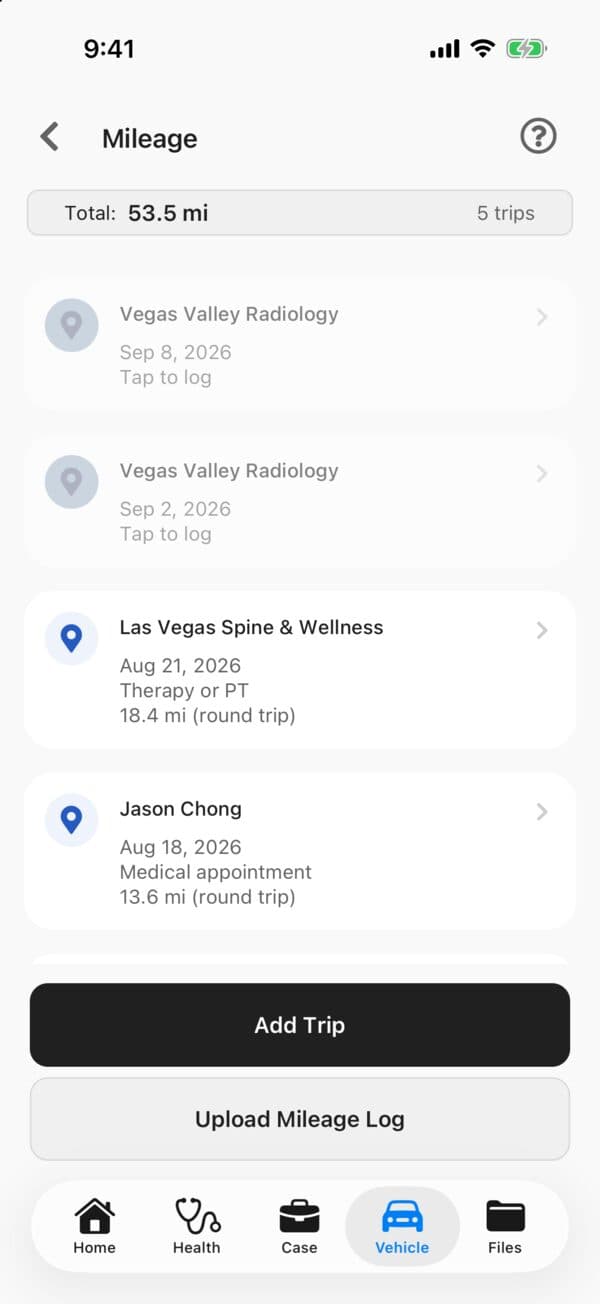
Every Visit Is One Tap From a Logged Trip
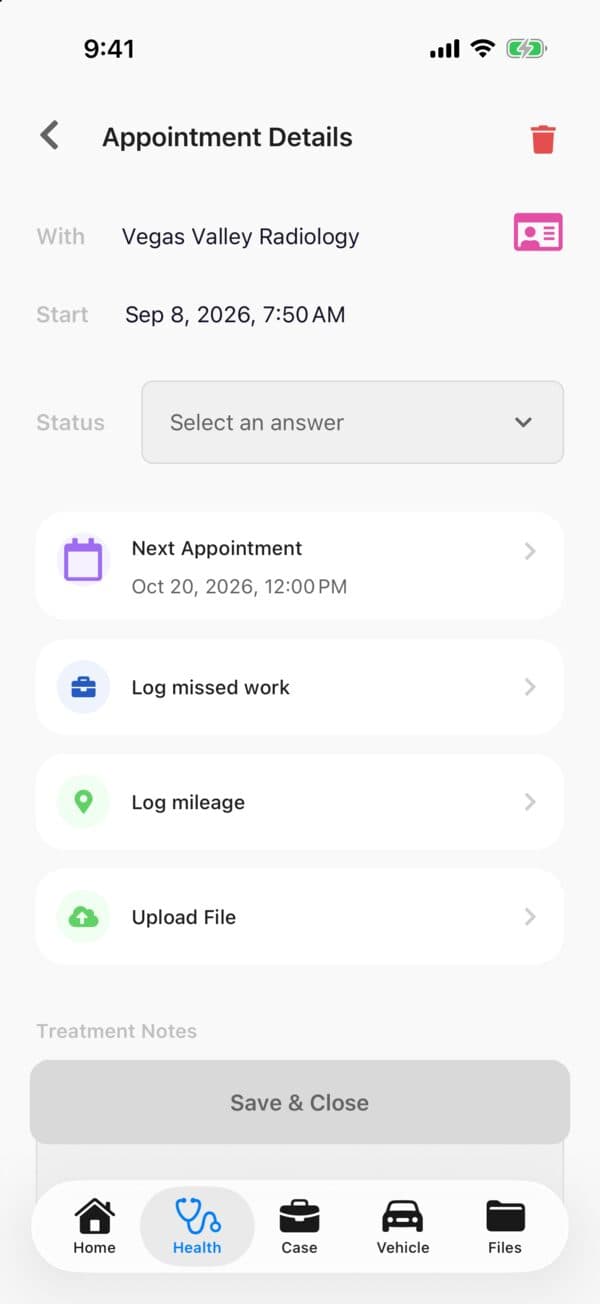
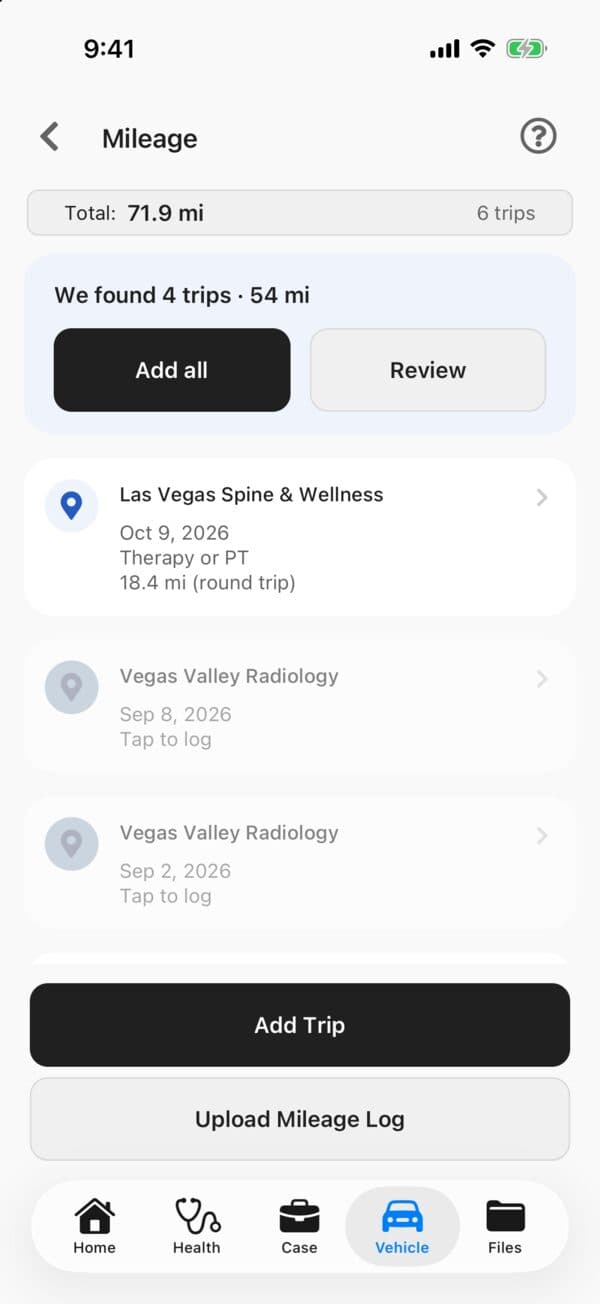
Past appointments without a trip wait at the top of the log, already filled in. When a client marks a visit as attended, the app offers to log the drive. Logging a trip for a visit they never answered marks it attended too, so the appointment record gets better along the way.
Paper Logs and Map Screenshots Become Trips
Some clients already keep a notebook in the glovebox or screenshot their route to the doctor. They upload the photo and Quilia reads it into trips, matched to their providers, skipping anything already logged. It works from the Mileage screen, a message or the Files tab. For clients who prefer paper, there is a printable mileage log made for it.
Or They Just Text It
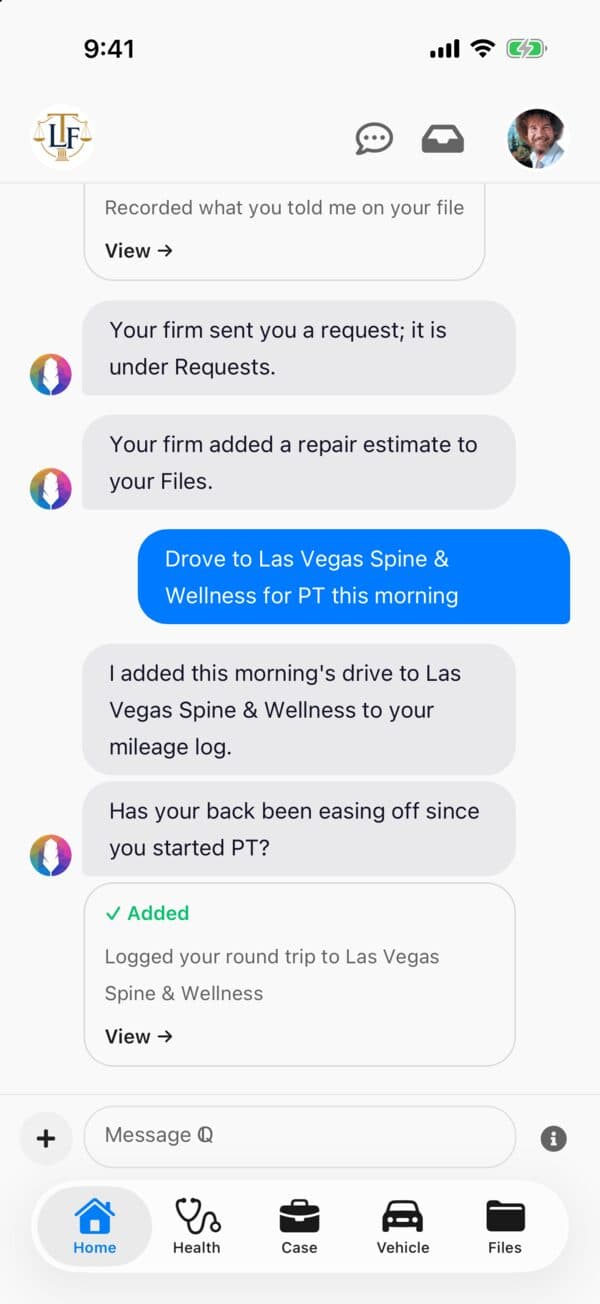
“Drove to PT this morning” is enough. Clients can tell Quilia about a drive in any language the app supports, and the trip is logged with its miles.
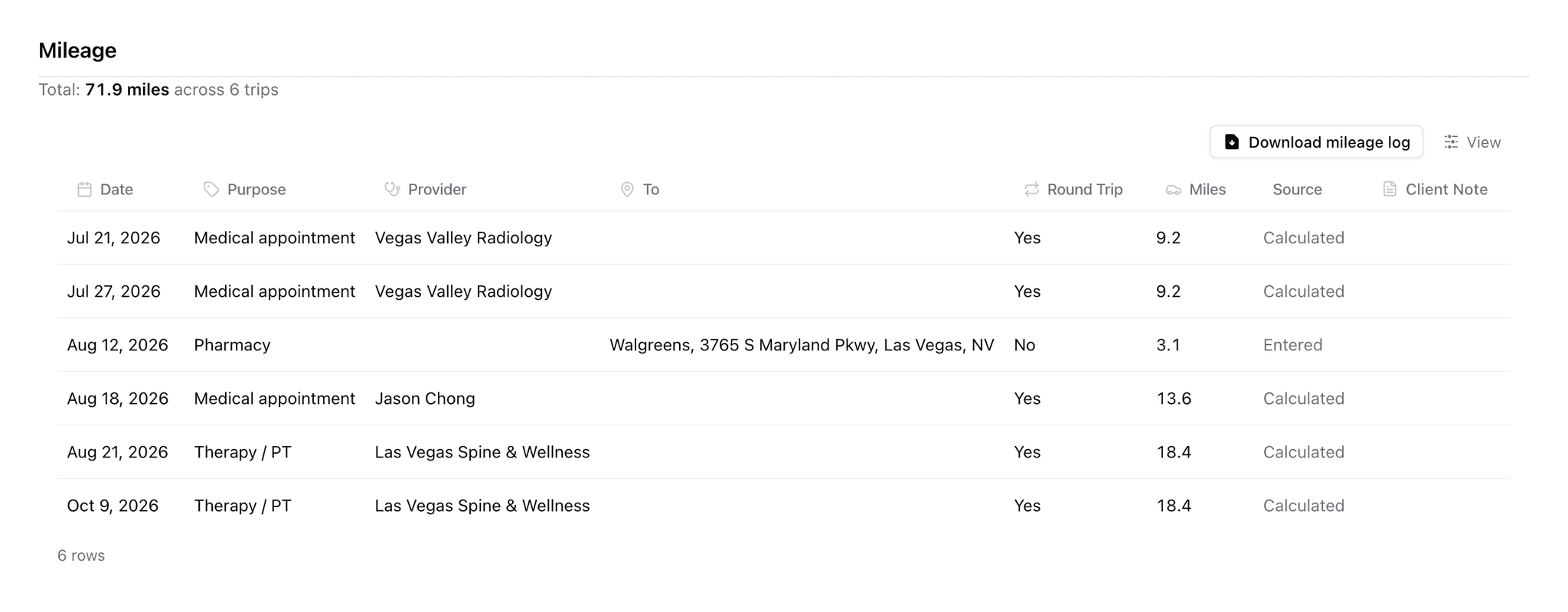
A Mileage Log on Every Case
Every trip shows on the case with the date, reason, destination and miles, next to Rental on car accident cases. Download it as a PDF to attach to a demand or a CSV for your own math, and each trip reaches your case management system as a note. Quilia tracks miles only, so you apply whatever reimbursement rate fits the claim.
Mileage Tracking FAQs
How do clients log mileage?
In the Quilia app, clients pick where they went and where they started, home, work or another address, and the driving distance fills in. Past appointments without a trip show up ready to log in one tap, and clients can also text Quilia about a drive or upload a photo of a paper log.
How are the miles calculated?
Quilia uses the driving distance from where the client started to the provider or address they visited, and counts round trips both ways. Clients can change the miles if their drive was different.
Can clients upload a paper mileage log?
Yes. A photo of a handwritten log or a screenshot of a map route is read and turned into trips, matched to the client's providers. Trips already on the list are skipped, so nothing is counted twice.
Does Quilia calculate mileage reimbursement?
No. Quilia tracks miles only. The PDF and CSV mileage logs give your firm the trips and the total so you can apply whatever rate fits the claim.
Where does my firm see the mileage log?
On the case's Mileage tab, under Incident on car accident cases and under Treatment on other injury cases, with a download as a PDF or CSV. Each trip is also sent to your connected case management system as a note.
Can we turn mileage off for some case types?
Yes. In Settings, open Case Types, pick a case type and turn Mileage off under Feature Visibility. It is already off for case types without treatment.