Wednesday, September 10, 2025
AI Summaries, SmartAdvocate Integration, and Faster Messaging
We’ve rolled out updates designed to save your firm time, improve client communication, and keep everyone on the same page. This release includes:
-
AI-powered case summaries for instant insights
-
SmartAdvocate integration to manage cases in one place
-
Improved phase messaging for faster, more reliable client updates
Key Updates in This Version
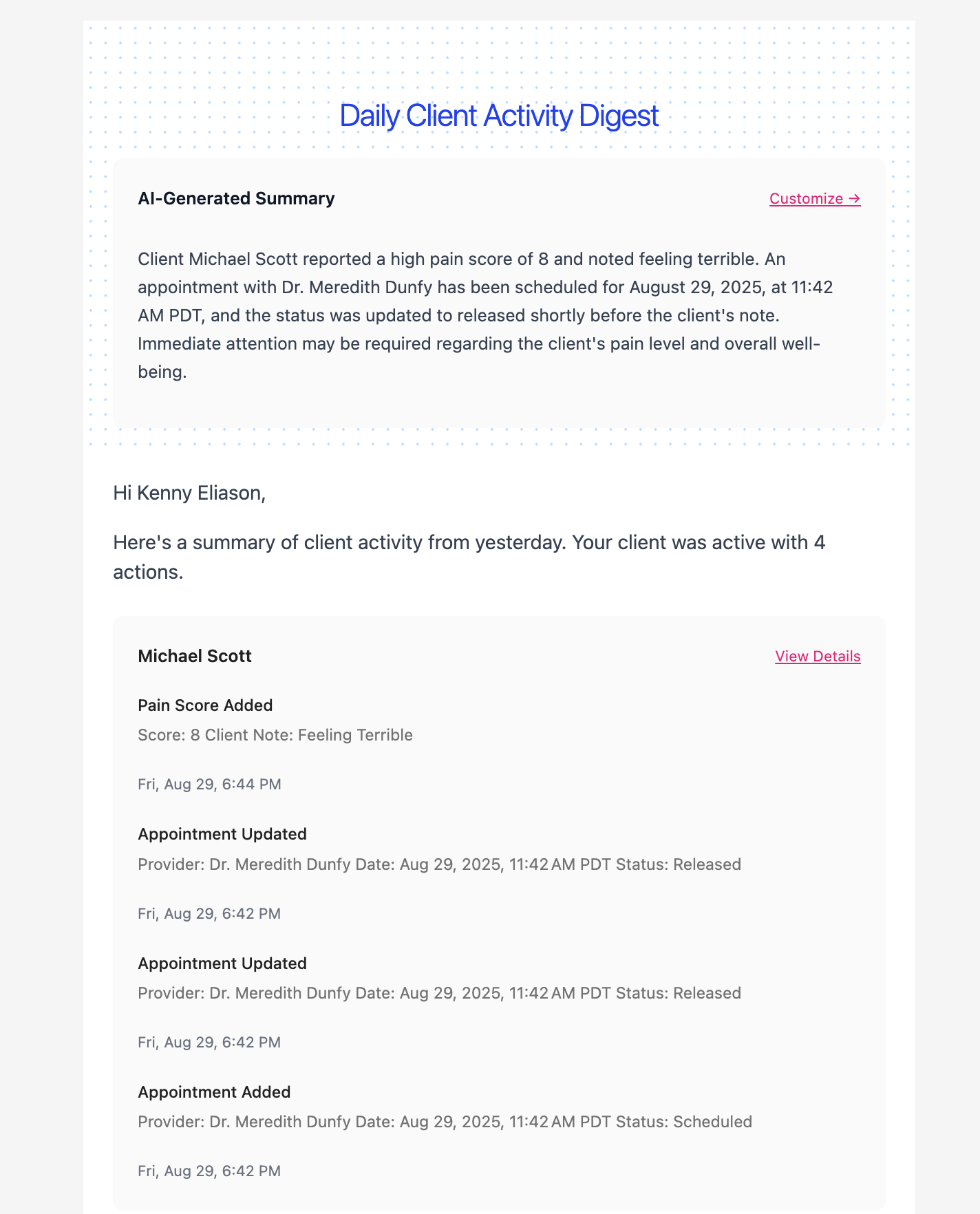
AI-Powered Case Summaries
See the most important case updates instantly — without searching through case files.
Why it helps:
-
Instant insights into case progress
-
Spot key client activity at a glance
-
Spend more time on strategy, less on sorting info
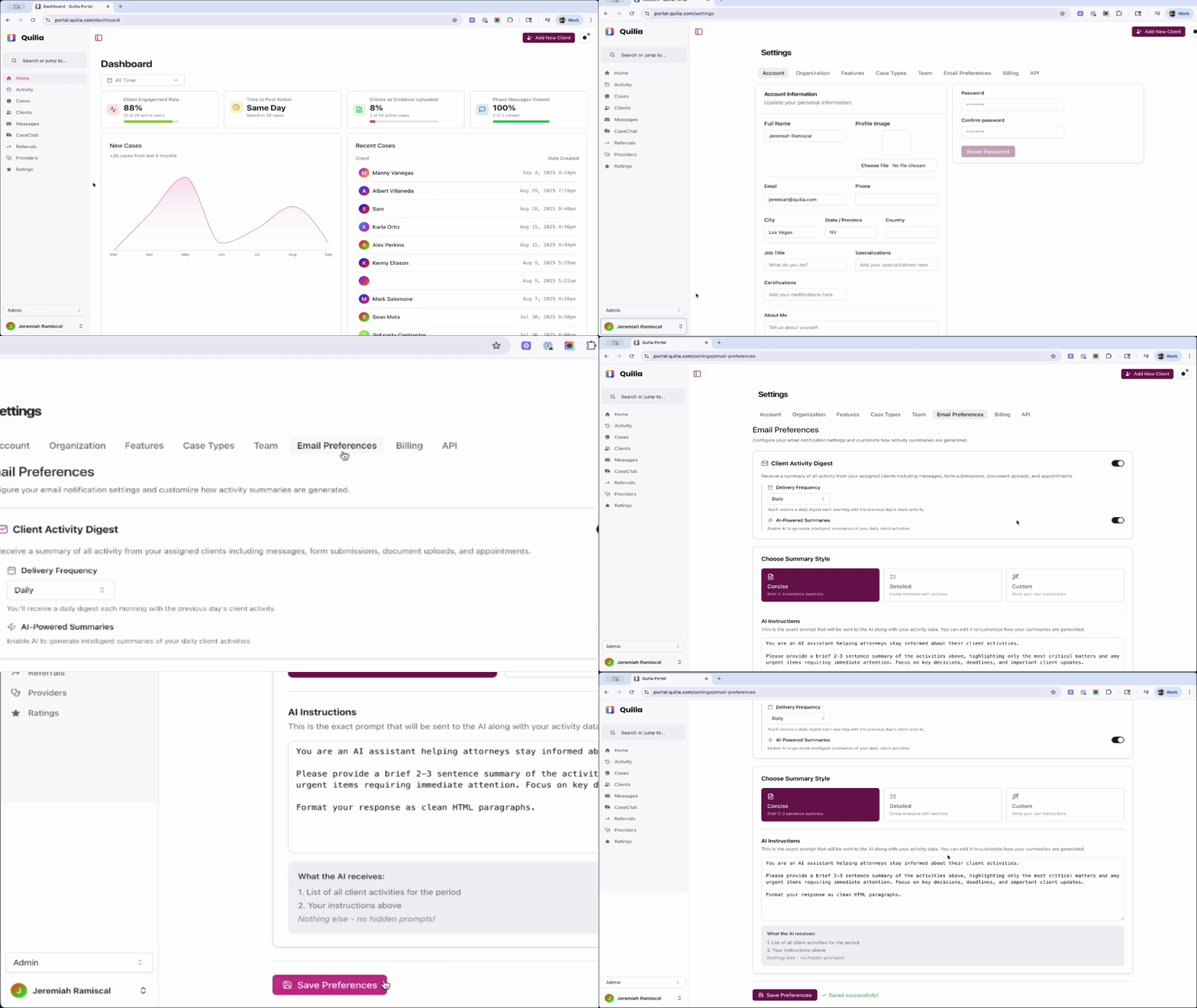
📌 Tip: Head to Settings → Email Preferences → toggle on AI-Powered Summaries → click Save Preferences
SmartAdvocate Integration
As previewed in our August release, Quilia now connects directly with SmartAdvocate.

What this means:
-
Manage cases and messages together in one place
-
Eliminate duplicate data entry
-
Reduce admin work and improve efficiency
New Integration Tools & Guides (For Partners)
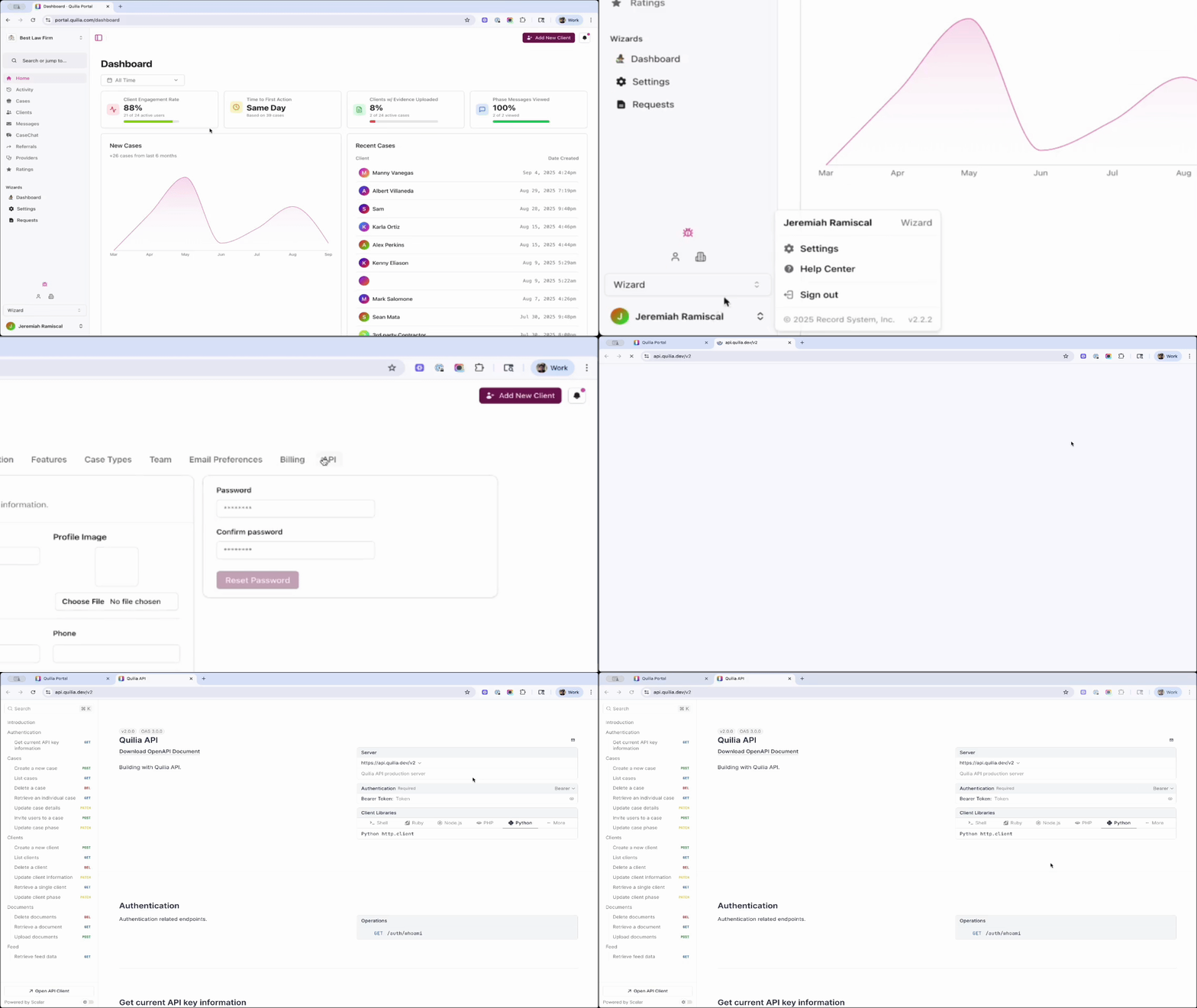
For firms with custom-built case management systems, Quilia now supports secure API connections — that’s a safe way for different systems to talk to each other. We’ve also added step-by-step guides so your tech team or partners can easily build custom dashboards, reports, and firm-facing tools.
What's inside:
-
Step-by-step guides for connecting Quilia
-
API key support for secure, flexible integrations
-
Build custom dashboards, reports, and firm-facing tools
📌 Tip: Head to Settings → API → click View Documentation to access API documentation
Improved Phase Messages
Phase messages are now faster and more reliable, ensuring your clients receive timely, accurate updates every time.
Now you can count on:
-
Accurate status tracking for every message
-
Timely delivery of client updates
-
Better communication continuity across your firm
What's Next in Quilia
We’ve got something new in the works that takes client updates to the next level. Case Signal delivers smarter, more timely insights that help you stay ahead and fill in the gaps before they even appear. It’s coming soon — stay tuned.
We're also making it easier to manage clients with multiple cases — and cases with multiple clients. These updates give your team greater visibility into client activity and streamline your workflows.:
-
A case can have multiple clients (case members).
-
A client can belong to multiple cases.
These updates make it easier to manage cases with multiple clients and clients with multiple cases.